Add Reolink cameras using UID to the iOS or Android App
Step 1:
Select the corresponding link below to install the latest version of the Reolink App for iOS or Android.
Download Reolink iOS App from Apple App Store https://apps.apple.com/us/app/reolink/id995927563
Download ** Reolink Android App from Google Play https://play.google.com/store/apps/details?id=com.mcu.reolink&hl=en_CA&gl=US Step 2:**
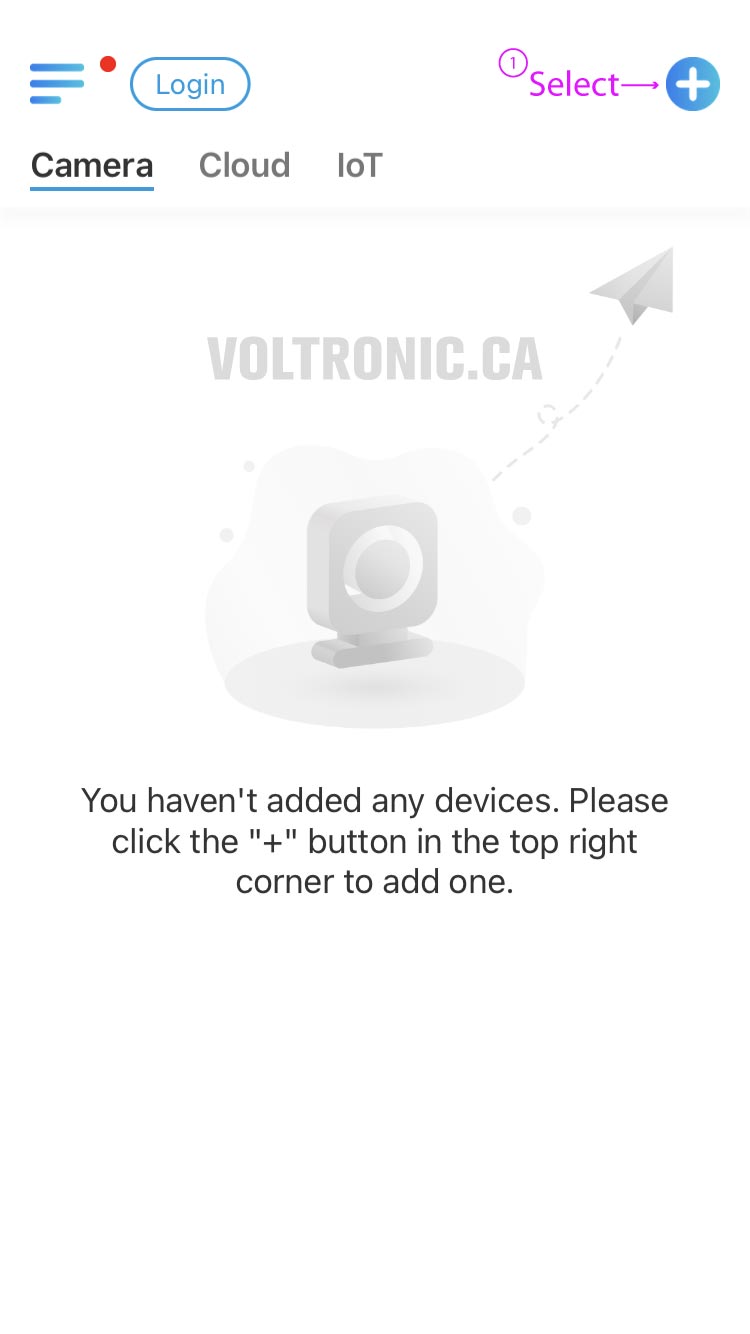
After opening the app, select the + icon on the top right-hand corner
Step 3:
Select “Input UID/IP” or scan the camera QR code.
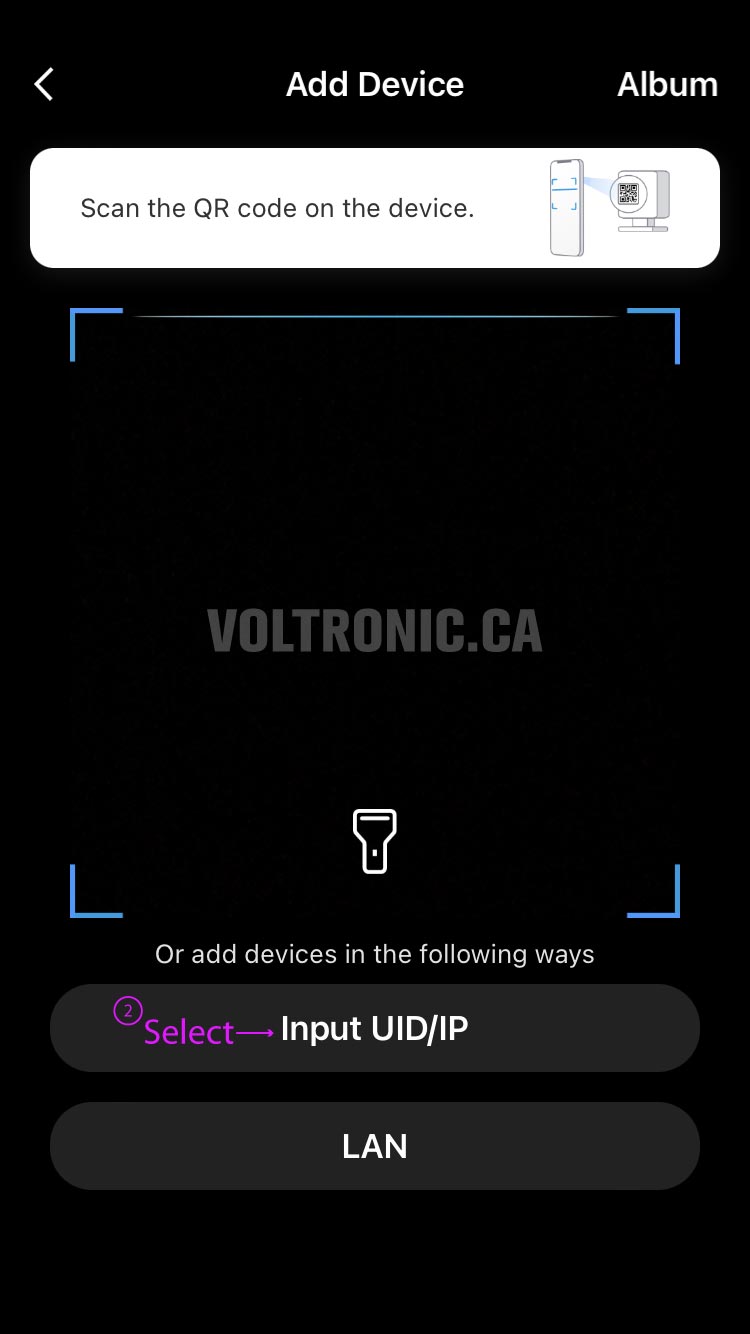
Step 4:
Input the camera UID
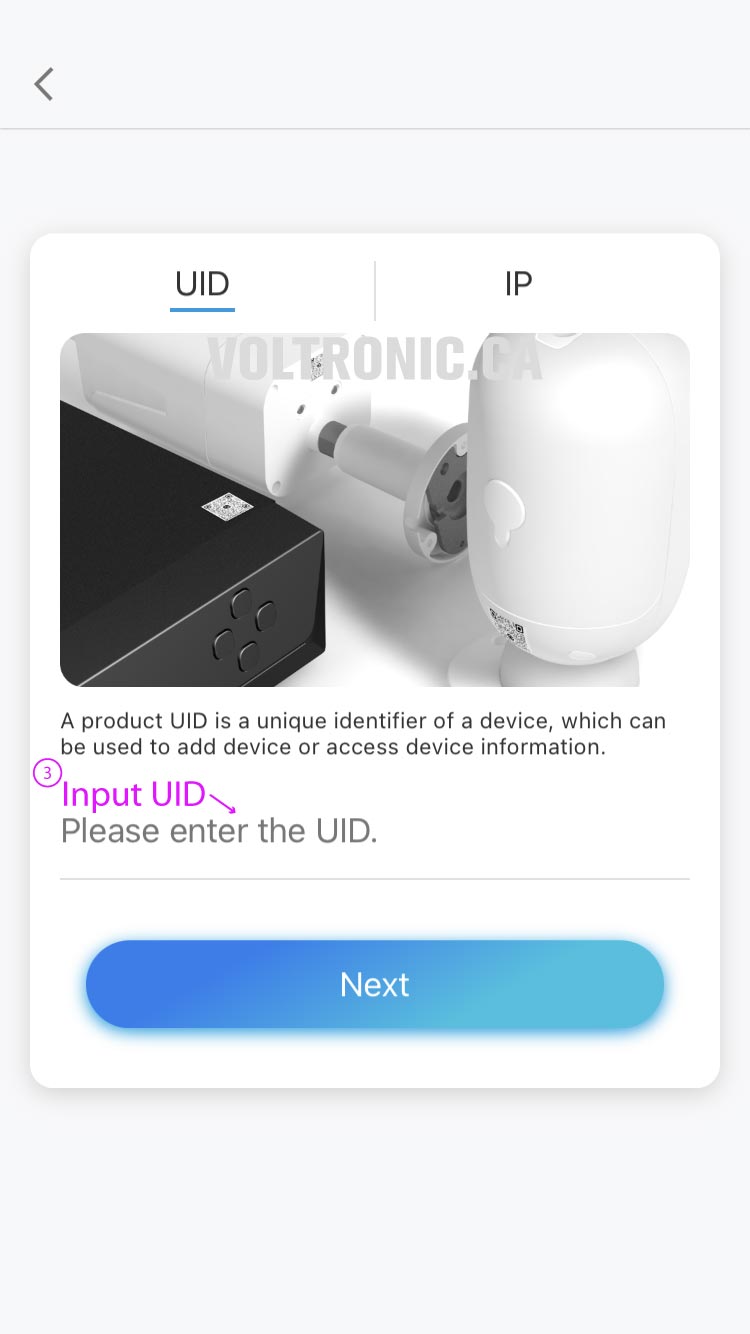
Step 5:
Input the camera password.
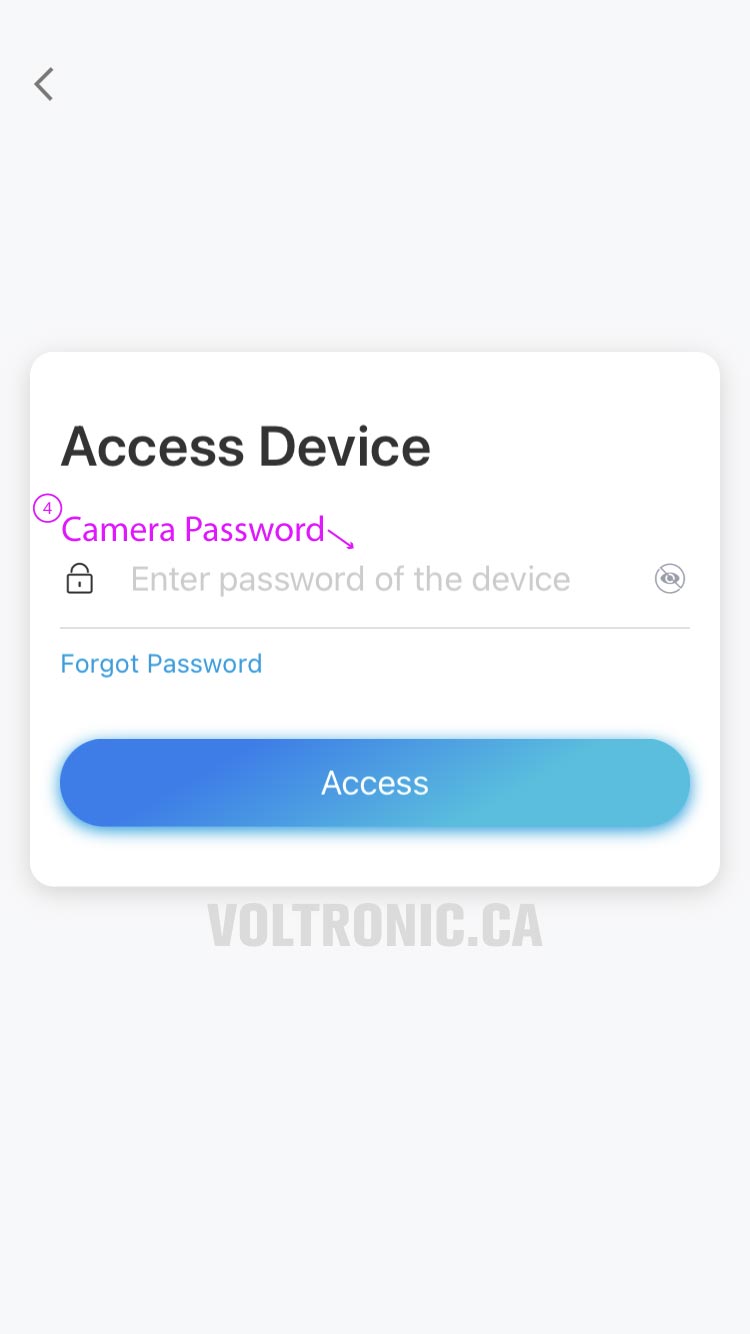
Step 6:
Wait for the camera to connect. When successfully connected, a similar screen will appear.
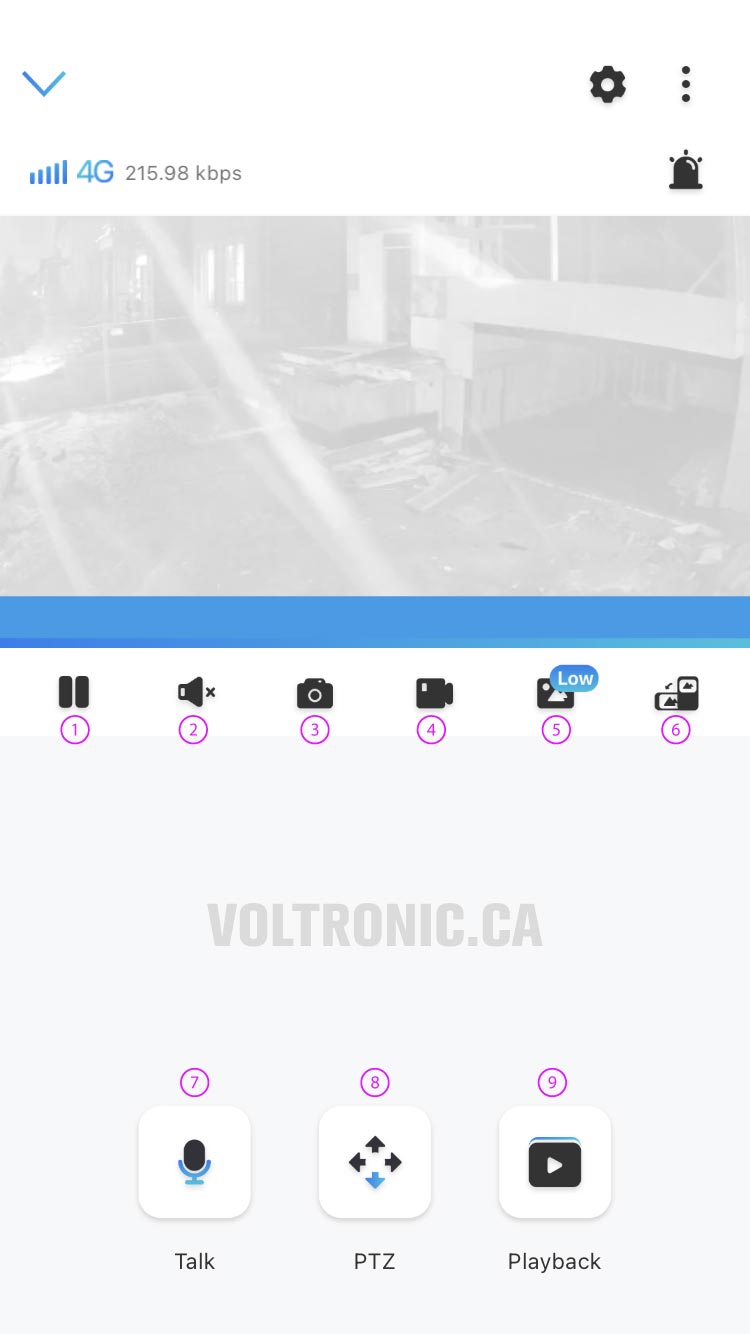
1: Pause live footage
2: Mute or unmute the audio from the camera
3: Take a snapshot
4: Manual video record
5: Switch video quality (Clear is high and fluent is low quality)
6: Switch video to landscape (full screen) mode
7: Enable two-way talk
8: Enable PTZ features to move the camera
9: Playback recorded footage